
Parallel Media Encoder MCP Server: Setup and Tools
Overview
Parallel Media Encoder includes a Model Context Protocol (MCP) server, so AI assistants can inspect media files and run encodes on your Mac. Ask Claude to make proxies for a shoot, check a card's frame rates and timecode, or turn a folder of camera RAW into ProRes, and it will use PME to do it.
It is built for the files a general-purpose tool like FFmpeg handles poorly: ARRIRAW, RED R3D, Nikon N-RAW, Blackmagic RAW, Canon Cinema RAW and broadcast MXF. Output uses Apple's hardware ProRes and HEVC engines, with source timecode carried over.
- Works with Claude Desktop, Claude Code, OpenAI Codex and Gemini CLI.
- Runs locally over stdio, and nothing listens on the network. PME never sends full media files or audio;
pme_grab_framereturns downscaled still frames only when the assistant asks to see a clip (see what the assistant receives). - Free to use. Encodes follow the same free-tier rules as the app.
- Requires Parallel Media Encoder 1.147.01 or later, macOS 14.5+, Apple Silicon.
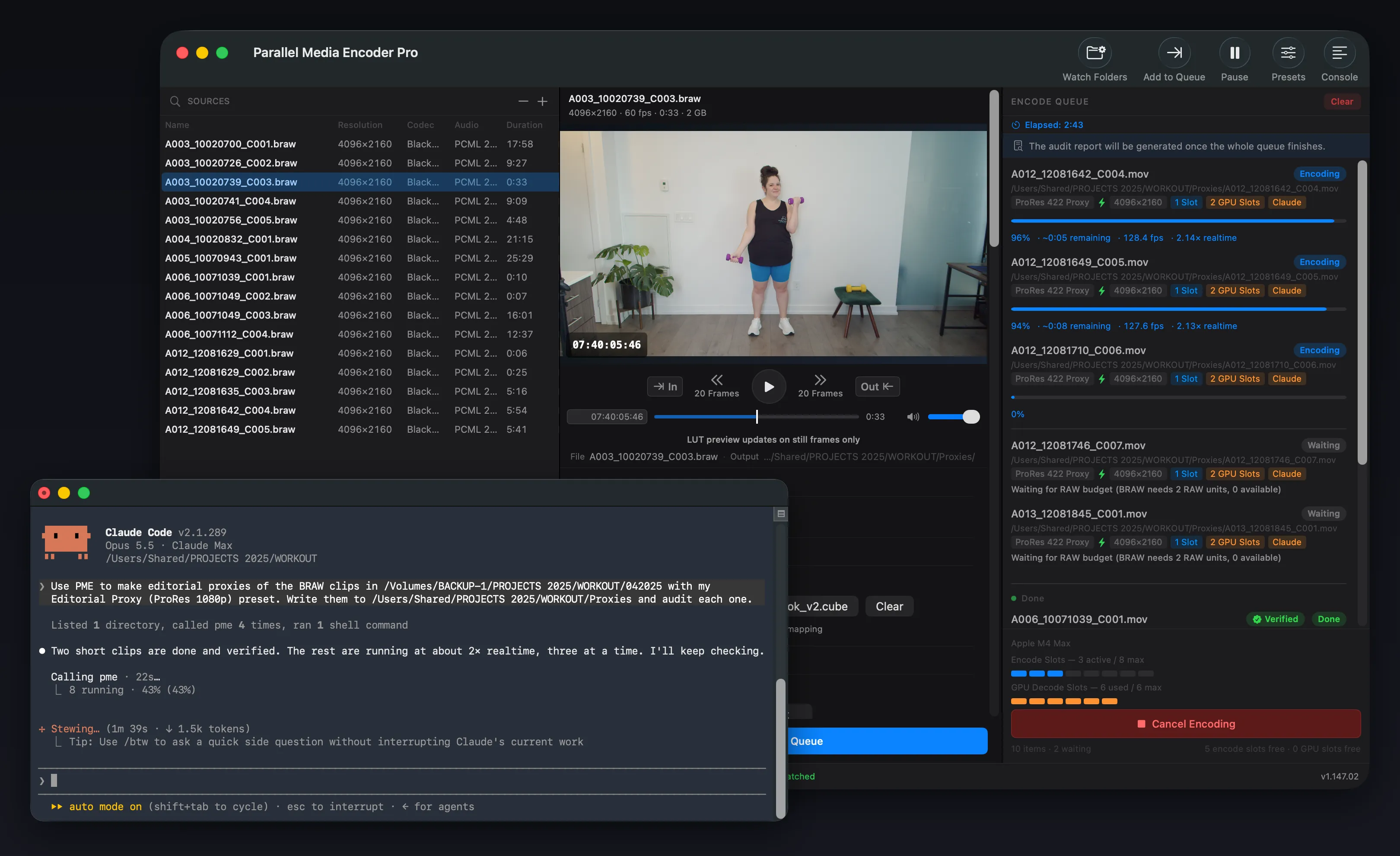
See the PME media encoder MCP for examples of project-wide, rule-based transcoding.
Install
Download Parallel Media Encoder, move it to /Applications and open it once. Then register the MCP server with your AI apps in either of these ways.
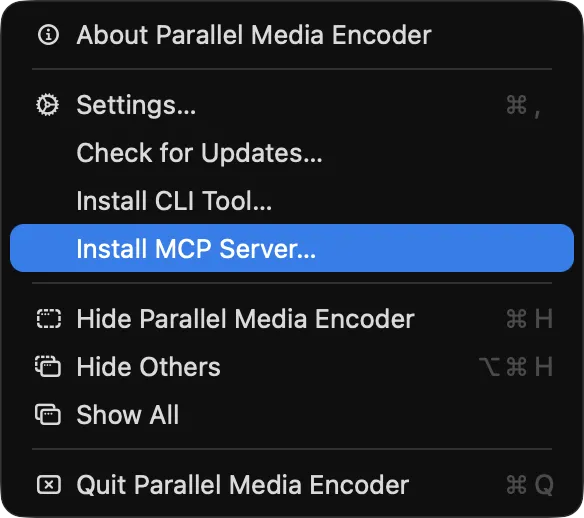
From the app
- In the menu bar, choose Parallel Media Encoder → Install MCP Server… (or open Settings → Integrations).
- Click Install in All Detected Apps, or Install next to a single app.
- Restart the AI app as shown (for Claude Desktop: quit and reopen).
From Terminal
"/Applications/Parallel Media Encoder.app/Contents/MacOS/pme" mcp install
If you have installed the CLI tool, pme mcp install is enough. It detects every supported app, adds a pme server entry, and tells you what to restart. Check the result any time:
pme mcp statuspme: /Applications/Parallel Media Encoder.app/Contents/MacOS/pme
Claude Code installed
Claude Desktop installed
Codex installed
Gemini CLI not installed| App | Config written | After installing |
|---|---|---|
| Claude Code | claude mcp add --scope user (or mcpServers.pme in ~/.claude.json) | Start a new session |
| Claude Desktop | ~/Library/Application Support/Claude/claude_desktop_config.json | Quit and reopen Claude |
| Codex (CLI, app, IDE) | [mcp_servers.pme] in ~/.codex/config.toml | Start a new session |
| Gemini CLI | ~/.gemini/settings.json | Start a new session |
Useful options:
pme mcp install --client codex    # one app, even if it wasn't detected (repeatable)
pme mcp install --dry-run         # show what would change
pme mcp uninstall                 # remove PME from every app
pme mcp status --json             # machine-readable status
The installer only changes the pme entry. Other MCP servers and settings are left as they were, a config file that isn't valid JSON is reported and not touched, and each file is backed up once a day to <file>.pme-backup-YYYYMMDD.
Manual setup
Any MCP client that can launch a local stdio server works. The command is the pme tool inside the app bundle with the argument mcp.
Claude Desktop and Gemini CLI
Add a pme entry under mcpServers in the app's config file (paths in the table above):
{
  "mcpServers": {
    "pme": {
      "command": "/Applications/Parallel Media Encoder.app/Contents/MacOS/pme",
      "args": ["mcp"]
    }
  }
}
Claude Code
claude mcp add --scope user --transport stdio pme -- "/Applications/Parallel Media Encoder.app/Contents/MacOS/pme" mcpCodex
[mcp_servers.pme]
command = "/Applications/Parallel Media Encoder.app/Contents/MacOS/pme"
args = ["mcp"]
Test with the MCP Inspector
npx @modelcontextprotocol/inspector --cli "/Applications/Parallel Media Encoder.app/Contents/MacOS/pme" mcp --method tools/listTools
All tool names start with pme_ so they are easy to tell apart from other servers such as DaVinci Resolve's.
| Tool | Tier | What it does |
|---|---|---|
pme_probe_media | Free | Container, codec (including the camera RAW flavour), resolution, frame rate (and, for MOV/MP4, whether it is variable frame rate: base cadence, average rate, held frames), duration, bit depth, audio tracks, and whether PME can transcode the file on this Mac. detailed: true adds every metadata section: timecode, HDR, colour, camera metadata. |
pme_grab_frame | Free | Returns still frames of a clip as JPEG images the assistant can look at, decoded and turned the way PME encodes it, so it can tell which clips in a batch are sideways or upside down before choosing rotate. One frame from the middle of the clip by default; at picks times and count spreads frames across the clip, up to 12 per call. max_size sets the long edge: 768 pixels by default, 128 to 1,920, never scaled up. rotate previews what a job would write. The images go to your AI client like any other tool result (see what the assistant receives). Writes nothing. |
pme_list_presets | Free | Built-in and custom presets with their codec and a settings summary; detailed (or name) adds every setting under its pme_transcode option name, including frame_timing and bitrate_scaling. |
pme_hardware_info | Free | Chip, media engines, parallel session limit, supported output codec ids (OpenEXR sequences only where macOS can write them), VideoToolbox features available on this macOS, RAW decoders present. |
pme_license_status | Free | Free or Pro, plus what the free tier allows, so the assistant can pick settings that will run. On Pro it reports the same license fields as pme license status --json: source, edition (an education license is Pro features for non-commercial use), licensee, seats, seats_used, lease_expires and license_expires, plus lapse when a license stops unlocking Pro and, when every seat is in use, machines: the Macs holding them, one of which the user can replace in Settings → License. |
pme_transcode | Free / Pro | Queue one or more files and return job ids, planned output paths and one request_id for the whole call immediately, with each warning listed once with the jobs it concerns. Accepts every pme transcode option under its snake_case name. auto_start: false holds the jobs until released. |
pme_job_status | Free / Pro | State, progress, speed, ETA, output path, errors, why a queued job is waiting, and the audit result, for some or all jobs, or every job of one request_id. Above 10 jobs it lists the ones that need a look and counts the rest (see large batches). |
pme_wait_for_jobs | Free / Pro | Waits up to 55 seconds for jobs to finish (for audited jobs, until the audit result is in), sending progress updates, then returns the job objects (above 10 jobs, as pme_job_status does). The assistant calls it again for long encodes. Returns at once if only held jobs remain, and waits a few seconds past its limit when a finished job’s audit report is still being written. |
pme_release_jobs | Free / Pro | Let held jobs encode, and start the queue unless start_queue: false. Reports which ids were released, not held or missing. |
pme_retry_jobs | Free / Pro | Queue failed or cancelled jobs again with the same settings, as the queue’s Retry does. rerun_completed: true encodes finished jobs again and replaces their output; the server tells the assistant to ask you first. |
pme_audit_jobs | Free / Pro | Check finished outputs against their sources after the fact, for jobs submitted without audit: true. The verdict and the report arrive through pme_wait_for_jobs. |
pme_remove_jobs | Free / Pro | Remove specific jobs from the queue list by id, leaving everyone else’s alone. Jobs still encoding are refused until cancelled; output files stay. |
pme_move_job | Free / Pro | Change where a waiting job sits in the start order: first, last, up, down or a position, as the queue’s Move to Top / Up / Down / to Bottom. Running and finished jobs stay put, with the reason. |
pme_update_job | Free / Pro | Change a held job’s options before releasing it instead of cancelling and resubmitting: only the options given change, unset removes some, replace: true sets the whole request. It is checked exactly like a new pme_transcode and keeps its id and place in the queue. |
pme_cancel_job | Free / Pro | Cancel a queued or running encode; partial output is removed. Cancelling a finished job changes nothing and says so. |
pme_clear_jobs | Free / Pro | Remove finished jobs from the list (output files stay). dry_run: true only reports how many would go. |
pme_queue | Free / Pro | status, pause or start the whole queue. |
pme_list_watch_folders | Free | Every watch folder with what it is doing: watched or stopped (and whether the app or the background service watches it), errors with what to do about them, the next scan, files waiting to be picked up, and the jobs it made. |
pme_watch_folder_status | Free | One watch folder in full: files still being copied or sent back (with the reason PME couldn’t transcode them), the ids of its jobs for pme_job_status and pme_retry_jobs, the Failed folder, network share state and recent activity. Answers “why wasn’t my file picked up?”. |
pme_create_watch_folder | Pro | Create a watch folder from a folder, an output folder and a preset. dry_run: true checks the settings and lists media already in the folder (the first scan moves it); start: true starts watching at once. |
pme_update_watch_folder | Pro | Change only the settings given (preset, interval, suffix, output folder, …), or turn the folder on or off with enabled. A watched folder restarts with the new settings. |
pme_watch_folder_control | Pro | start, stop, scan_now, or mount (reconnect its network share with the stored credentials). watch_folder: "all" starts or stops every folder. |
pme_remove_watch_folder | Free / Pro | Remove a watch folder’s settings. No files are moved or deleted, and its queued jobs finish. |
pme_save_preset | Pro | Save pme_transcode options as a custom preset (it appears in the app), for example a 720p ProRes Proxy with a LUT for a watch folder. |
pme_rename_preset | Free / Pro | Rename a custom preset; watch folders that use it follow the new name. |
pme_delete_preset | Free / Pro | Delete a custom preset. Refused, with the folders named, while a watch folder uses it. Built-in presets can’t be deleted. |
pme_service_status | Free | Whether the service is reachable and who hosts it (the app or the background service), with version, build and when that binary was built (built_at), license tier, socket and log paths. Never starts anything. |
pme_report_issue | Free | Draft a problem report to the PME developer, with the failed jobs’ settings, errors, warnings and log lines, and open it in the app’s Report a Problem window (launching the app if needed). The tool sends nothing: you review exactly what will be sent, with file and folder names replaced by placeholders unless you include file names, add an email if you’d like a reply, and press Send. Turn it off in Settings → Integrations. |
pme_report_status | Free | Whether a report is still waiting in the app, was discarded, or was sent, and the reply: received, a known problem, or fixed in a newer version. |
Transcode options
pme_transcode takes inputs (absolute paths, required) plus optional output, output_dir, overwrite and auto_start. Every other option is the matching pme transcode flag in snake_case, exactly as in the REST API job fields: codec, preset, resolution, frame_rate, frame_timing, quality, bitrate, bitrate_scaling, rate_control, audio_codec, timecode, missing_timecode, in/out, lut, arri_color, canon_color, raw_exposure_ev, the image sequence options (image_bit_depth, image_compression, jpeg_quality, frame_numbering, custom_start_frame, frame_padding) and the rest. Codec ids are listed under Available Codecs.
Invalid values are rejected with the field named and nothing is queued. PME never overwrites a source file, and an existing output is refused unless overwrite is true; the server tells the assistant to ask you first.
- Trims:
inandouttake either an offset into the clip (00:00:10:00is ten seconds in) or the source's own timecode aspme_probe_mediareports it, drop-frame included (01:22:03;26). The defaulttrim_reference: autoreads a value inside the clip's timecode range as source timecode;cliporsourceforce one reading. The job echoes the choice withtrim_in/trim_outas clip offsets. - Container:
containerpicksmov,mp4(H.264/HEVC) ormxf(DNx) for every input of the request, so a batch of camera MP4s can go tooutput_diras MOV in one call. Without it, H.264/HEVC keep the source's container when it is MOV or MP4. MOV and MP4 outputs both carry the source timecode track. - Image sequences:
codecdpx,tiff,jpegorexrwrites one still per frame into a folder per clip (<output_dir>/<source name>/<source name>.0000001.dpx), with no audio.outputnaming a folder without a file extension makes that the sequence folder; a file name such asclip.dpxis refused.image_bit_depthpicks DPX 8/10/12/16 (default 10), TIFF 8/16/float (default 16), JPEG 8 or OpenEXR half/float (default half);image_compressionpicks TIFF Deflate (default), LZW or none and OpenEXR ZIP (default) or none;jpeg_qualityis 1 to 100 (default 90).frame_numberingstarts atone(default),zero, thesource_timecodeas a frame count, orcustomwithcustom_start_frame(e.g. 1001);frame_paddingsets 4 to 8 digits. DPX frames carry the source timecode in their header. A ProRes 4444 source keeps its full 4:4:4 chroma, and its alpha channel in TIFF (straight) and OpenEXR (premultiplied); DPX and JPEG are written without alpha, and the job notes it. The job'soutput_pathis the folder,frame_patternnames the frames and, once it finishes,frames_writtencounts them; withaudit: truethe audit counts the frames, fails on gaps and checks the depth and first frame number. JPEG sequences are free; DPX, TIFF and OpenEXR are Pro, and OpenEXR appears inpme_hardware_infoonly where macOS can write it. - Profile:
profilepicks the H.264/HEVC profile (main10keeps a 10-bit source's depth when a preset or bitrate would choose 8-bit Main). Without it, HEVC in quality mode is already Main10 for sources above 8 bits. - Held jobs:
auto_start: falsequeues a job that never starts, even while others encode, untilpme_release_jobsor Release in the app. The app shows it with a Held badge. - Channel maps:
audio_mappicks the source channels of a stereo or mono mix, e.g."1:3,4"(channel 3 left, 4 right) or"1:2"(mono from channel 2); Sony MXF and Canon CRM mono tracks count as channels of track 1. Without it, channels without speaker labels take channels (or tracks) 1 and 2. A map the source's tracks can't honour is rejected with the reason. - Frame timing: variable-frame-rate sources (iPhone footage, screen recordings, livestreams) keep their own frame timing by default (
frame_timing: auto), so picture and sound stay in sync; constant-frame-rate sources are written on their exact cadence.resamplemakes a constant frame rate by real time, repeating or dropping frames where the timing varies and keeping the length;renumberrestamps every frame one frame apart (how presets saved before frame timing behave), which changes a variable source's length. DNx and GIF outputs, which can't carry variable timing, are resampled underauto; MKV/WebM sources are profiled by scanning their packets when the job starts, sopme_probe_mediadoesn't flag them; segment-parallel encodes keep or resample the timing like single-stream ones. The job reportsframe_timing_requestedandframe_timing_effective, and the audit's Frame timing row checks the result. - Bitrate scaling: in LucidLink (Proxy), or with
bitrate_scaling: on, the bitrate is a ceiling set for a 1920×1080 picture: smaller outputs get less, and never more than 1.5× the source's own video bitrate. The job'sbitrate_requested,bitrate_effectiveandbitrate_scaling_noteshow the figure and why; the submit reply names it too. - Warnings: each job carries one
warningslist, each notice once: what PME can predict at submit from the probe (ML frame processing an FFmpeg-decoded source can't use, SDR-range preservation on an HLG source, an 8-bit profile for a 10-bit source, an audio re-encode that relabels or folds channels without speaker labels, a variable-frame-rate source) and what the engine records while encoding. - Large batches: replies stay small enough for the assistant to read however many files you queue. Every warning and note is listed once in
notices, with the jobs it concerns (a note that names each file shows it as[file]), andpme_transcodereturns only what the assistant needs to follow each job: its id, state, input and output paths. Above 10 jobs,pme_job_status,pme_wait_for_jobsand the bulk tools (release, retry, audit, remove, clear) list the jobs that need a look (encoding, failed, retrying, or an audit to review) and count the rest in groups with their ids, such as “87 jobs: completed, audit verified, safe to archive”.detail: "full"returns every field of every job. The assistant doesn’t have to carry hundreds of job ids either:pme_transcodereturns onerequest_idfor the call, andpme_wait_for_jobs,pme_job_status, release, retry, audit and remove take it in place of the job ids.
Verifying outputs
Pass audit: true and PME checks each output against its source after encoding: frame count, duration, frame timing (kept, resampled, or renumbered; a renumbered variable source needs review, since its picture drifts against the sound), timecode, audio tracks, channels and format, audio signal (a decoded slice of each output track is compared with the source, so a re-encode that wrote silence fails), colour tags and range, bit depth and profile, pixel aspect ratio. The job then reports audit_status (verified, needs_review or failed), safe_to_archive, the mismatching rows in audit_mismatches, and audit_report_path. Each pme_transcode call gets one PDF/CSV/JSON report, written as soon as its last job finishes, next to the outputs (one per output folder) or in the folder audit_report_dir names, which keeps reports out of a proxy tree an editor browses. A job never reports completed while its audit is still pending, and pme_wait_for_jobs keeps waiting until its report is written (audit_report_pending). needs_review with safe_to_archive: true usually means a requested option could not be honoured (for example denoise on a WebM source); the mismatch row says which.
Watch folders
Your assistant can set up and run PME watch folders the same way you would in the app's Watch Folders window: every new media file dropped into a folder (subfolders included) is transcoded with a preset into an output folder. Ask it to create one, change it, turn it on or off, scan it now, or explain what a folder is doing.
- Pickup moves files. Once a file has stopped changing across two scans, PME moves it into the folder's
PickedUpsubfolder and queues it; the source of a failed encode moves toFailed. Media already in the folder is picked up on the first scan, so the assistant checks with a dry run first and asks you before creating a watch folder over existing media. - Protected folders. Through MCP (and the REST API), PME refuses to watch your home folder, Desktop, Documents, Downloads, Movies, Pictures or Music folder, system folders and whole volumes. Use a dedicated subfolder such as
~/Movies/PME Watchor/Volumes/RAID/Ingest. - On and off. A new watch folder is only watched when created with
start: trueor started later; start, stop and scan-now work on one folder or all of them. - Where they run. Watch folders run in whatever hosts the PME service: the app while it is open (quitting it stops them, as it always has), otherwise the background service, which only watches the folders the assistant starts there and stays running while any folder is watched. When you open the app it takes those folders over. A background service installed with
pme service installalso resumes them at login. - In the app. Folders an assistant created or changed carry its name as a tag in the Watch Folders window, and if one changes while you have it open for editing, the sheet says so and offers to reload.
- Network shares. The assistant can reconnect a folder's SMB/NFS share with the credentials stored in your Keychain, but passwords can't be set over MCP. Enter them in the app's watch folder settings (or with
pme watch edit --network-password-stdin). - Presets. A watch folder uses a preset. When none fits, the assistant can save one with
pme_save_presetfrom ordinary transcode options. - Jobs. The encodes a watch folder starts are ordinary queue jobs:
pme_watch_folder_statuslists their ids, andpme_job_status,pme_wait_for_jobsandpme_retry_jobswork on them.
Watch folders are a Pro feature; listing them and reading their status is free. The same operations are available from the terminal as pme watch and over the REST API.
Example prompts
- “What’s on this card? Probe everything in /Volumes/A001/CLIP and tell me codecs, frame rates and start timecodes.”
- “Make ProRes 422 Proxy files of every clip in ~/Footage/Day1 into ~/Footage/Day1/Proxies, keeping source timecode.”
- “Transcode this ARRIRAW clip to ProRes 422 HQ in Rec.709 and tell me when it’s done.”
- “Convert these MKV screen recordings to H.264 MP4 at 1920x1080, AAC stereo audio.”
- “Make AAC stereo review copies of these 8-channel ProRes masters from the M&E pair, channels 3 and 4.”
- “Which codecs can this Mac encode in hardware, and how many encodes can it run at once?”
- “Trim A003C012.MXF from 01:02:10:00 to 01:02:40:00 and export it as HEVC with the timecode reset to zero.”
- “Make LucidLink proxies of these iPhone clips and the livestream, audit them, and tell me if any drift out of sync.”
- “Watch /Volumes/RAID/Ingest and make 720p ProRes Proxy files with our show LUT into /Volumes/RAID/Proxies. Check first what’s already in there.”
- “What are my watch folders doing? Why didn’t A012C004.MXF get picked up?”
- “Pause the Dailies watch folder, and change Ingest to scan every minute.”
The assistant usually probes first, submits the jobs, then waits and reports output paths when they finish. With DaVinci Resolve's MCP server also connected, you can go one step further: “transcode these clips with PME, then import the ProRes files into a new Resolve bin.”
How it works
- Your AI app starts
pme mcpas a child process and talks to it over stdin/stdout. - Probing, presets, hardware, license and service-status questions are answered inside that process. No background service is needed.
- Encodes go to the PME service over a private Unix socket with a per-user token. While Parallel Media Encoder is open, the app itself is the service: the jobs appear in its Encode Queue tagged with your AI app's name, share the same parallel-encode limits as everything else in the window, and you can pause, reorder or cancel them there. Quitting the app cancels them, and the assistant is told to resubmit.
- With the app closed,
pme mcpstarts the headless background service (pme service) instead, so encodes keep running if you close the chat or quit the AI app. Ask later for the status and the assistant will pick them up again. If you open the app while that service is busy, the app shows its jobs read-only and takes over once they finish. Turn app hosting off in Settings → Integrations if you always want the background service.
Each chat or session runs its own pme mcp process (a bridge), and each one exits when the AI app that started it quits, even if that app leaves the connection open.
Diagnostics are written to ~/Library/Application Support/ParallelMediaEncoder/mcp.log. Nothing is printed to stdout except protocol messages.
What the assistant receives
Probing, decoding and encoding happen on your Mac. Tool results go back to your AI client over stdio as text and structured data: paths, file names, technical metadata, presets, hardware details, license tier, job state, output paths and errors. The one exception is pme_grab_frame, which returns still frames of a clip as JPEG images when the assistant calls it: one frame by default, at most 12 per call, scaled to 768 pixels on the long edge unless the assistant asks for another size (never more than 1,920). No tool returns full media files or audio.
PME does not receive or store your prompts or tool results, but your AI client may send them, frames included, to its model provider, where that provider’s data policies and your account’s privacy settings apply. Your AI client may also have file or shell access of its own, separate from PME’s tools. See Data Security for the full picture.
Connected assistants
Settings → Integrations shows where the service is running and which assistants are using it:
- Encode service shows who hosts the service (this app, or the background
pme service) with its process id, and the socket path every bridge connects to. Use the buttons beside it to copy the path or show it in Finder. - Connected assistants lists every running bridge: the assistant it belongs to, its process id, when it started, when it was last used and which PME version it runs. Stop ends one bridge.
- The Console's toolbar shows the same summary, for example
API pme.sock · this app (pid 70557) · 3 MCP bridges, 1 stale. The log records each assistant as it connects and disconnects.
A bridge is marked stale when:
- Orphaned: the assistant that started it has quit, so nothing uses it any more.
- Outdated: PME was updated or rebuilt after the bridge started. That session keeps PME's old tools until you reconnect PME in the assistant. Bridges started by a PME version from before this list existed also show as outdated.
Clean Up Stale stops every stale bridge at once. Encodes already in the queue keep running. An assistant whose bridge you stop loses PME's tools until you reconnect PME there (Claude Code: /mcp → Reconnect) or start a new session.
The same list is available from Terminal:
pme mcp bridgesService socket: /Users/you/Library/Application Support/ParallelMediaEncoder/pme.sock
Hosted by: the app (pid 70557)
3 MCP bridges:
2881 Claude Code — started 3 hr. ago, pme 1.147.01 (47)
66183 Codex — started 12 min. ago, pme 1.147.01 (47)
94027 Claude Desktop — started 1 day ago [orphaned] The assistant that started it has quit.
1 stale. Run `pme mcp bridges --stop-stale` to stop them.pme mcp bridges --stop-stale # stop every orphaned or outdated bridge
pme mcp bridges --stop 94027 # stop one bridge by process id (repeatable)
pme mcp bridges --json # machine-readable listFree vs Pro
The MCP server itself is free. Encodes follow the same rules as the app:
| Free | Pro |
|---|---|
| Probe any file, list presets, hardware and license info | Camera RAW sources (ARRIRAW, R3D, N-RAW, BRAW and Canon Cinema RAW) and RAW exposure |
| H.264, HEVC, ProRes and JPEG image sequences from standard sources (MOV, MP4, MXF H.264, MKV/WebM, …) | LUTs, timecode and watermark overlays, DNxHR/DNxHD, DPX/TIFF/OpenEXR image sequences, HEVC 4:2:2, ProRes 4444 alpha |
| Built-in presets, resize, frame rate, audio re-encode, trim, timecode override | Custom presets (including pme_save_preset), watch folders, ML frame processing (super-resolution, denoise, interpolation) |
| Up to 8 queued encodes, 2 at a time | Unlimited queue, as many parallel encodes as the Mac allows |
A request that needs Pro on the free tier returns a pro_required error listing the features and an upgrade link, and nothing is queued. Activate Pro in the app (or with pme license activate) and ask again. The app tells the background service right away, so there is nothing to restart. Deactivating takes effect the same way. (Changes made any other way are picked up within a minute.)
PME vs FFmpeg for AI agents
Agents often reach for FFmpeg by default. PME is the better tool when the job involves:
| Job | FFmpeg | PME |
|---|---|---|
| ARRIRAW, RED R3D, Nikon N-RAW, Blackmagic RAW, Canon Cinema RAW | Not supported or partial | Official camera SDKs, colour matched to DaVinci Resolve |
| Sony / broadcast MXF (XAVC Intra, Long-GOP, multi-track PCM) | Works; timecode and track layout need manual flags | Native, with timecode and all audio tracks carried over |
| Apple ProRes output | VideoToolbox hardware encoding is available in compatible builds and must be configured | Automatic hardware selection with professional presets |
| HEVC / H.264 output | VideoToolbox possible with tuning | VideoToolbox with parallel sessions across media engines |
| Batch encoding | Parallel processes and resource limits must be orchestrated by the agent | Built-in queue that runs as many encodes in parallel as the Mac allows |
| Jobs that outlive the chat | Requires separate background-process and state management | Background service keeps encoding after the chat closes |
For quick edits of everyday web formats, FFmpeg is still fine. The two work well side by side.
Troubleshooting
The AI app doesn't show PME's tools
Run pme mcp status. If the app shows installed, restart it completely (Claude Desktop: Quit from the menu bar, not just closing the window). If it shows not detected, install it explicitly with pme mcp install --client <name>.
Status says "stale" or "points at another copy"
The app was moved or deleted, or a second copy is installed. Open the copy in /Applications and run Install MCP Server… again (or pme mcp install) to point every app at it.
"Running from a translocated location"
macOS runs apps opened straight from Downloads or a disk image from a temporary path. Move Parallel Media Encoder to /Applications, open it from there, then install.
Still getting pro_required after activating Pro
The background service reads your license from the record the app saves when you activate, so it does not need the Keychain to know you have Pro. When the service starts, and when the license is due for renewal with the license server, pme reads the key from the Keychain, and macOS may ask whether it can use the com.parallelmediaencoder.license item. Choose Always Allow. If the service still reports free, run pme license status: its Status line says why (for example every seat is in use, or the license needs to reach the server), and --json reports it as lapse. Then run pme service stop. The service starts again on the next encode.
"The PME service is not running" or it won't start
Encodes need the background service. Start it yourself with pme service start and check ~/Library/Application Support/ParallelMediaEncoder/service.log and mcp.log for the reason.
Lots of pme processes in Activity Monitor
Each open chat or session that uses PME runs its own pme mcp bridge, so a dozen open sessions means a dozen small processes. They sit idle without using CPU. To see which assistant each one belongs to and stop old ones, open Settings → Integrations → Connected assistants and click Clean Up Stale, or run pme mcp bridges --stop-stale. See Connected assistants.
File not found
Paths must be absolute local paths on this Mac, such as /Volumes/Card/CLIP/A001C003.MXF. Drag the file into the chat or ask the assistant to use the full path. Network volumes must be mounted first.
R3D says a decoder is missing
pme_hardware_info lists the RAW decoders available. See the Feature Index for each format's requirements.
Still stuck?
Ask your assistant to report it. It opens a report in PME's Report a Problem window with the jobs' settings, errors and log lines already attached, and you review it and press Send. The MCP tools can only draft a report; they can't send one. You can also use Help → Report a Problem yourself, or send mcp.log through the contact form and say which AI app you're using.
FAQ
Does Parallel Media Encoder have an MCP server?
Yes. The pme command-line tool inside Parallel Media Encoder includes a Model Context Protocol server (pme mcp) that Claude Desktop, Claude Code, Codex and Gemini CLI can use to probe media and run encodes on your Mac.
Is the PME MCP server free?
Yes. Probing, presets, hardware and license tools are free, and encodes follow the same free-tier rules as the app. Camera RAW sources, LUTs, overlays, DNx, DPX/TIFF/OpenEXR image sequences and custom presets need Pro; JPEG sequences are free.
Can an AI assistant set up PME watch folders?
Yes. With Pro, the MCP tools create, change, start, stop, scan and remove Parallel Media Encoder watch folders and report what each one is doing, including files waiting to be picked up and why a file was not transcoded. Listing watch folders is free.
Can ChatGPT use the PME MCP server?
Codex connects directly to PME as a local stdio server. ChatGPT can reach local or private MCP servers through Secure MCP Tunnel where that feature is available, but PME’s one-click installer does not currently configure ChatGPT.