
Media Encoder MCP for Mac. It handles the whole project.
Parallel Media Encoder includes a local Model Context Protocol (MCP) server. Describe the rules once: by resolution, file name, audio channels, frame rate or camera. Your assistant probes every clip, proposes the settings, and fills PME’s hardware queue after you approve the plan. Your media files stay on your Mac.
MCP server included free. macOS 14.5+, Apple Silicon.
Built for editors, DITs and post teams who already know the codec, colour pipeline and delivery spec they need.
Found 148 clips from 3 cameras. Here's the plan:
✓ All 148 done in /Volumes/RAID/Harbor/Transcodes. Heads-up: 2 B-cam clips are 29.97 fps in a 23.976 project. I left them as shot. Want me to import the clips into Resolve?
Illustrative session. Your assistant’s wording will vary.
Works with
A real session
Ask in your terminal. Watch it in PME.
Claude Code calls PME’s MCP tools, and every job lands in the Encode Queue tagged with the client that sent it. The same slot meters, RAW decode budget and audit results apply as for a job you queued yourself.
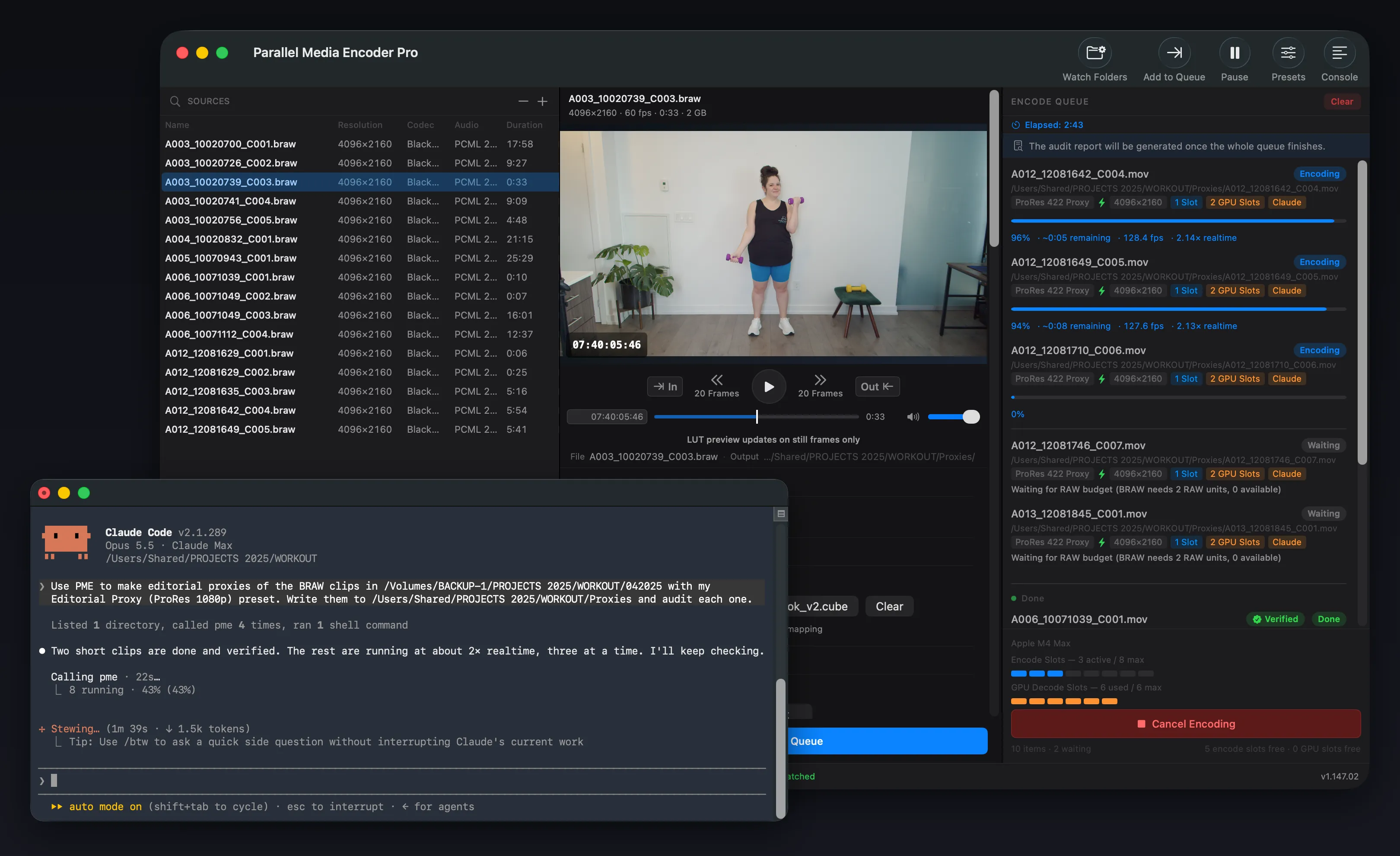
Captured from Claude Code and PME 1.147.02.
One prompt, different settings per clip
A preset treats every file the same.
Your AI doesn’t.
PME reports each file’s codec, resolution, frame rate, timecode, colour metadata and audio tracks. The assistant applies your rules to every clip and sends it to the queue with the right settings.
A001C004_250312_R1ZK.MXF
ProRes 422 HQ
stereo mix
B_0231_INT_Mara.MP4
ProRes 422 HQ
all 8 ch · TC burn-in
C0412.MP4
ProRes 422 LT
flagged for review
DJI_0087.MP4
ProRes 422 LT
scaled to 1920×1080
IMG_4471.MOV
H.264 1080×1920
stereo · social cut
Hours of prep, replaced by a sentence
Real things you can ask. The assistant works out the per-clip settings and PME does the encoding.
Conform a whole project by resolution
“UHD to ProRes 422 HQ, HD to 422 LT, and anything vertical to 1080×1920 H.264 for social. Put it all in /Transcodes.”
Replaces: Sorting hundreds of clips by resolution and building a separate batch for each group.
Route clips by file name
“Anything with INT in the name is an interview: ProRes 422 HQ with timecode burn-in. Clips starting with DJI are drone: 422 LT at 1080p.”
Replaces: Filtering in Finder, dragging each group to the right preset, and hoping nothing got missed.
Decide by audio layout
“If a clip has more than two audio channels, keep every channel for the mix. Phone and GoPro clips get downmixed to stereo.”
Replaces: Opening each file in an inspector to count tracks before choosing settings.
Catch problems before you encode
“Probe the card and tell me any clips whose frame rate or start timecode doesn’t match the rest before you queue anything.”
Replaces: Finding a 29.97 clip in a 23.976 timeline three days into the edit.
Right LUT on the right clips
“Apply our S-Log3 to Rec.709 LUT only to clips the probe reports as S-Log3. Leave the Rec.709 clips alone.”
Replaces: Checking colour metadata by hand and running two passes with two presets.
Every deliverable from one sentence
“For each final export: an HEVC 10-bit archive master, a 1080p H.264 review copy with timecode burn-in, and a 30-second trim for social.”
Replaces: Three presets, three drags into the queue, and a trim you set by hand for every file.
Chain it with DaVinci Resolve
“Transcode today’s cards with PME, then import the ProRes files into a new Resolve bin named by shoot day.”
Connect Resolve’s MCP server alongside PME and the assistant can take footage from card to timeline-ready in one request.
Where you get the time back
The encoding was already fast. The setup around it wasn’t.
Without MCP
- 1 Open clips in an inspector to check resolution, frame rate and audio tracks
- 2 Sort files into groups by hand
- 3 Build or pick a preset for each group
- 4 Drag each group into the queue and set output folders
- 5 Come back later to see what failed
With PME + your AI
- 1 Describe the rules once, in plain English
- 2 The assistant probes every clip and shows you its plan
- 3 You approve it, and the jobs go straight into PME’s parallel queue
- 4 Watch progress in the app, or ask the assistant for a summary
You stay in control
Built for footage you can’t afford to lose or leak.
Local only
The server and encoder run locally over stdio. PME never sends full media files or audio. Your AI client receives technical metadata and, only when the assistant asks to look at a clip, downscaled still frames.
Originals are safe
PME never overwrites a source. Existing outputs are only replaced if you tell the assistant it’s OK.
Visible in the queue
AI jobs appear in the Encode Queue tagged with the client that submitted them. Pause, reorder or cancel them yourself.
Keeps working after chat closes
With the app closed, a background service keeps encoding. Ask later and the assistant picks the jobs back up.
Built for professional post-production
Generic FFmpeg MCP servers can run commands. PME adds camera RAW, broadcast MXF, source timecode, hardware-aware parallel scheduling and a queue you can control.
| Feature | Parallel Media Encoder | HandBrake | EditReady | FFmpeg MCP servers |
|---|---|---|---|---|
| Built-in MCP server | Yes | No | No | Third-party wrapper |
| Runs locally, media files stay on your Mac | Yes | No AI control | No AI control | Varies (many are cloud) |
| Camera RAW (ARRIRAW, R3D, N-RAW, BRAW, Canon RAW) | Yes (Pro) | No | Yes (no AI) | No |
| Hardware ProRes encoding | Yes | No | Yes (no AI) | Available in compatible builds |
| Hardware-aware parallel queue | Yes | No | No | Requires manual orchestration |
| AI jobs visible and cancellable in an app window | Yes | No AI control | No AI control | No |
| Encodes keep running after the chat closes | Yes | No AI control | No AI control | No |
“-” means not applicable because the app has no MCP server.
Set up in under a minute
Install PME
Download the free app, move it to Applications and open it once.
Click Install MCP Server
In the app menu, choose Install MCP Server…. PME detects supported MCP clients and configures each one.
Ask
Restart your AI app and describe what you want. Try “What’s on this card?” first.
Prefer Terminal, or configuring by hand? See the MCP server guide for every client, the tool reference and troubleshooting.
Frequently asked questions
What makes PME different from a generic video transcoding MCP server?
Which AI assistants work with it?
Does my footage get uploaded to the AI company?
Can the AI overwrite or delete my camera originals?
Is the MCP server free?
Can I watch or stop what the AI is doing?
Does it work with DaVinci Resolve’s MCP server?
Hand your next transcode to your AI
Download Parallel Media Encoder free. The MCP server is included. Unlock camera RAW and full parallel encoding for $39.
Download FreeRequires macOS 14.5 or later. Apple Silicon required.
Get the download link sent to your email